

Puppeteer Full-Page Screenshots: The Complete Guide (and the 7 Things That Break in Production)
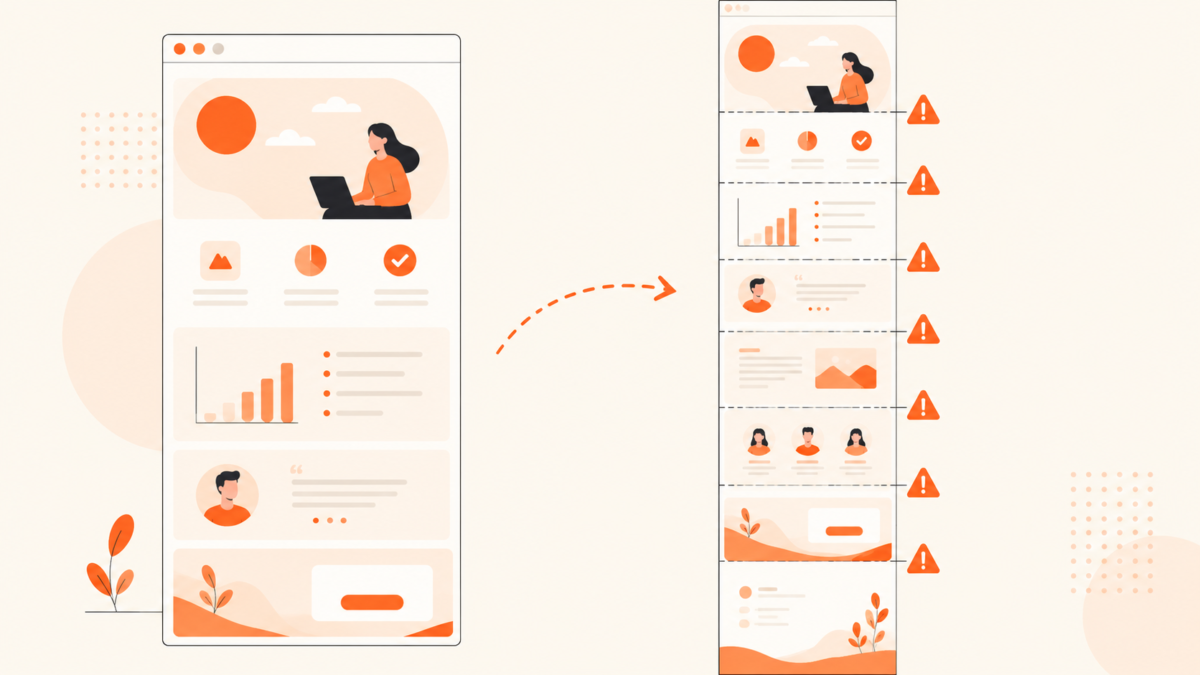
screenshot({ fullPage: true }) is a one-line API that works perfectly on the first page you try it on and then fails, quietly and in seven distinct ways, on the pages you actually care about…screenshot({ path: “full… headless: true now means the real headless Chrome — the old, separately-built…
page.screenshot({ fullPage: true }) is a one-line API that works perfectly on the first page you try it on and then fails, quietly and in seven distinct ways, on the pages you actually care about. Nothing throws. You get a PNG. The PNG is just wrong — half the images are grey placeholders, the header appears four times down the strip, the chat widget is sitting in the middle of a pricing table, and the fonts are the browser’s fallback serif instead of the ones the design uses.
This is the guide for both halves of that. First, how to get a full-page capture that is actually correct, with the launch and viewport options that matter and the waiting strategy that decides everything. Then the seven failures that show up once you point the script at real sites, each with a diagnosis and a fix.
Everything below is Node with ESM ("type": "module" in your package.json, or a .mjs file) and a current Puppeteer major. Where an API changed recently, I say so.
The five lines that work
import puppeteer from "puppeteer";

const browser = await puppeteer.launch();

try {
  const page = await browser.newPage();

  await page.setViewport({ width: 1440, height: 900, deviceScaleFactor: 1 });
  await page.goto("https://example.com", { waitUntil: "load", timeout: 30_000 });
  await page.screenshot({ path: "full.png", fullPage: true });
} finally {
  await browser.close();
}
puppeteer.launch() with no arguments is headless and downloads its own matching Chrome build at install time. Two things worth knowing before you start pasting flags from Stack Overflow. headless: true now means the real headless Chrome — the old, separately-built headless binary that rendered subtly differently from a visible browser is now opted into explicitly with headless: "shell", and you almost certainly don’t want it for screenshots. And --no-sandbox, which appears in roughly every Docker snippet on the internet, is a container workaround, not a default: add it when your runtime forces you to, not on your laptop.
The try/finally is not stylistic. A thrown navigation error without it leaves a Chrome process alive, and a loop over a few hundred URLs leaves a few hundred of them alive.
One other recent change to be aware of: page.screenshot() returns a Uint8Array in current majors, where older versions returned a Node Buffer. If you’re piping the result into something that type-checks for a Buffer, wrap it with Buffer.from().
Viewport, scale, and what fullPage actually does
setViewport() sets the CSS pixel dimensions of the window. In a full-page capture the width is the part that survives into the image dimensions — the height gets overridden by the document — but the height is not therefore irrelevant: it’s what vh units resolve against, what IntersectionObserver measures its thresholds from, and, as failure three below depends on, the box that fixed elements think they’re pinned to. Width matters because it selects which responsive breakpoint renders. 1440 gets you the desktop layout of most sites; 1280 is a common default; drop to 390 and you get the mobile layout, with all of that layout’s different lazy-loading and different sticky behaviour. The same reasoning applies when you’re deliberately capturing phone and tablet layouts — width and height presets for iPhone, Android and tablet screens covers what a viewport size does and does not reproduce.
deviceScaleFactor is the device pixel ratio. At 1, a 1440-CSS-pixel-wide page produces a 1440-pixel-wide image. At 2, the same page produces 2880 pixels of width and four times as many pixels overall. More on the cost of that in failure five.
What fullPage does under the hood is the source of most of the confusion in this article: Puppeteer measures the document, expands the capture region to the full content height, and grabs it in one shot. It does not scroll. The page is never moved. Whatever the page would have done in response to a user scrolling from top to bottom — loading images, firing entrance animations, appending more feed items, pinning a header — does not happen, or happens too late to be in the frame. Every one of the seven failures below is a consequence of that single fact.
Worth pausing on before you go further, because it reframes half of what follows: every failure in the second part of this article is something fullPage introduces. A viewport capture has no seams, no stretched fixed elements, no unbounded height, and nothing below the fold to lazy-load. If you turned fullPage on because it seemed like the more complete option rather than because a downstream consumer needs the whole document, turning it off removes four of the seven outright — the lazy-load gap, both positioning failures and the infinite-scroll problem — and takes the height ceiling in failure five off the table as well. Fonts and cookie banners it does not touch; the banner problem it arguably makes worse, since a viewport capture is all fold. Full page vs viewport works through when each is the right record.
Waiting is the part that decides whether the capture is any good
page.goto() takes a waitUntil option with four values, and the difference between them is the difference between a good screenshot and a grey rectangle:
domcontentloaded— the DOM is parsed. Stylesheets, images and most JavaScript have not necessarily run. Almost never right for a screenshot.load— theloadevent fired: subresources referenced by the initial HTML are in. Reasonable default for server-rendered pages.networkidle2— no more than two network connections for at least 500 ms.networkidle0— no network connections at all for at least 500 ms.
networkidle0 is the one every tutorial recommends and the one that will waste the most of your time. It is a heuristic about the network, and plenty of perfectly normal pages never satisfy it: anything that long-polls, holds an open EventSource, keeps a heartbeat XHR running, or fires periodic analytics beacons will keep the connection count above zero indefinitely. Your script then sits there until the navigation timeout expires and throws TimeoutError: Navigation timeout of 30000 ms exceeded — on a page that finished rendering in 900 milliseconds.
It also fails in the other direction. A client-rendered app can go completely quiet after its initial bundle lands, satisfy networkidle0, and only then hydrate and start fetching the data that fills the page. You get a beautifully idle screenshot of an empty shell.
You can pass an array — waitUntil: ["load", "networkidle2"] — which waits for both, and that combination is a decent generic default. But the reliable pattern is to stop guessing about the network and wait for something you actually care about:
await page.goto(target, { waitUntil: "load", timeout: 30_000 });

// Wait for a real signal from the page itself.
await page.waitForSelector("[data-testid='pricing-table']", { timeout: 15_000 });

// Or wait for a condition you can express.
await page.waitForFunction(
  () => document.querySelectorAll(".product-card").length >= 12,
  { timeout: 15_000 },
);
And when you genuinely just need to let something settle, note that page.waitForTimeout() was deprecated and then removed. The replacement is a plain promise:
const wait = (ms) => new Promise((resolve) => setTimeout(resolve, ms));
await wait(1000);
A fixed sleep is a bad primary strategy and a perfectly good backstop after a real wait condition. Use both.
clip, and capturing one element
clip takes a region in CSS pixels and captures exactly that:
await page.screenshot({
  path: "hero.png",
  clip: { x: 0, y: 0, width: 1440, height: 700 },
});
clip and fullPage are mutually exclusive — pass both and Puppeteer throws. If you want a region from further down a long page, you take the coordinates from the page itself rather than guessing them.
For a single component, don’t compute coordinates at all. Element handles have their own screenshot(), and it scrolls the element into view for you:
const card = await page.waitForSelector(".pricing-card--pro");
await card.screenshot({ path: "card.png" });
That is the right tool for capturing components, table rows, chart widgets, or anything you’d otherwise be cropping by hand. The caveats are that an element with zero dimensions throws, and an element inside its own scroll container gives you the visible part of it, not its full scroll height.
Also useful on the screenshot() call itself: type accepts png, jpeg and webp; quality applies to the lossy two only; and omitBackground: true gives you a transparent PNG if the page doesn’t paint its own background, which most do.
The seven things that break in production
1. Lazy-loaded images never load
The most common complaint behind “puppeteer full page screenshot not working,” and a direct consequence of fullPage not scrolling. Images with loading="lazy", or hooked to an IntersectionObserver, only fetch when they approach the viewport. In a full-page capture the document is never scrolled through, so those images are never requested — or are requested at the last moment and don’t come back before the shutter fires. You get the top of the page rendered correctly and everything below it as blank boxes.
Two fixes, and you generally want both. Force eager loading, then wait for the images to actually complete:
await page.evaluate(() => {
  for (const img of document.querySelectorAll('img[loading="lazy"]')) {
    img.loading = "eager";
  }
});

await page.evaluate(async (budgetMs) => {
  const timeout = new Promise((resolve) => setTimeout(resolve, budgetMs));
  const pending = Array.from(document.images)
    .filter((img) => !img.complete)
    .map(
      (img) =>
        new Promise((resolve) => {
          img.addEventListener("load", resolve, { once: true });
          img.addEventListener("error", resolve, { once: true });
        }),
    );

  await Promise.race([Promise.all(pending), timeout]);
}, 8000);
The Promise.race against a budget is not optional. One image behind a dead CDN with no error event will hang that evaluate forever otherwise.
Flipping the loading attribute doesn’t help sites that lazy-load through their own observer or a data-src swap, and for those you have to actually move the page. That’s the scroll helper in failure six. The full set of techniques, including the animation side of the same problem, is in waiting for lazy-loaded images and animations before screenshots.
2. The sticky header sits in the wrong place
A one-shot capture paints once, so a sticky header resolves exactly once too — at whatever scroll offset the page happens to be sitting at when the shutter fires.
From a clean navigation that offset is zero, the sticky bar sits in normal flow exactly where the layout puts it, and the capture is fine. The failure only appears once something has scrolled the page. If anything left it scrolled — most obviously the scroll helper in failure six, if you skip its return to the top — the bar has already detached and pinned itself, and it paints wherever it was pinned, which is somewhere in the middle of your 9,000-pixel image with a gap in the flow where it used to be.
Headers built with position: fixed rather than sticky behave differently and worse, because they reserve no layout space at all and are pinned to a viewport that fullPage has stretched to the height of the document. That’s failure three, and the fix there is not the fix here.
The header appearing repeatedly down a long strip — at 0px, and again at 2,400px, and again at 4,800px — is a different failure with a different cause. That’s the signature of scroll-and-stitch capture, where each viewport-sized tile catches the pinned bar and the tiles are pasted together afterwards. Puppeteer’s fullPage path doesn’t tile, so you won’t see it here; you will see it the moment you or a library you’re using falls back to stitching for a page too tall to capture in one shot.
The fix is to take the element out of sticky positioning before you capture, so there is no pinned state to resolve at all. Doing it by computed style catches the elements you don’t have a selector for:
await page.evaluate(() => {
  for (const el of document.querySelectorAll("body *")) {
    if (getComputedStyle(el).position === "sticky") {
      el.style.position = "static";
    }
  }
});
That loop reads computed styles for every element, which is genuinely slow on a very large DOM — scope it to a container if you can. And it can reflow a layout that depended on the sticky element’s offset, so look at the output before you trust it. Why sticky headers break full-page screenshots covers the duplication and overlap symptoms in more detail.
3. position: fixed elements land in the middle of the page
Same root cause, different fix. Chat launchers, cookie bars, back-to-top buttons and “3 people are viewing this” toasts are pinned to the viewport, and in a full-page capture the viewport has been stretched to the height of the document. So the widget that lives politely in the bottom-right corner of a 900-pixel window ends up in the bottom-right corner of a 9,000-pixel image, floating over whatever content happens to be there.
Do not reuse the static trick here. Setting a fixed element to static drops it back into normal document flow, which usually means it appears inline in the middle of your content — a worse outcome than where it started. Remove it instead:
const OVERLAY_SELECTORS = [
  ".intercom-lightweight-app",
  "#onetrust-banner-sdk",
  "[class*='back-to-top']",
];

await page.evaluate((selectors) => {
  for (const selector of selectors) {
    for (const el of document.querySelectorAll(selector)) {
      el.remove();
    }
  }
}, OVERLAY_SELECTORS);
A blanket “hide everything with computed position: fixed” is tempting and occasionally correct, but it also removes legitimate fixed layout — sidebars in app shells, modal content you actually wanted. A maintained selector list per site is uglier and gives better screenshots.
4. Fonts aren’t loaded and the text is wrong
The subtler failure, because the screenshot looks fine until someone who knows the brand looks at it. Web fonts load asynchronously. If you capture during the gap, you bake FOIT (invisible text) or FOUT (fallback text) permanently into the image, and the line breaks are wrong too, because the fallback has different metrics.