

Building a mobile streaming experience with Amazon GameLift Streams
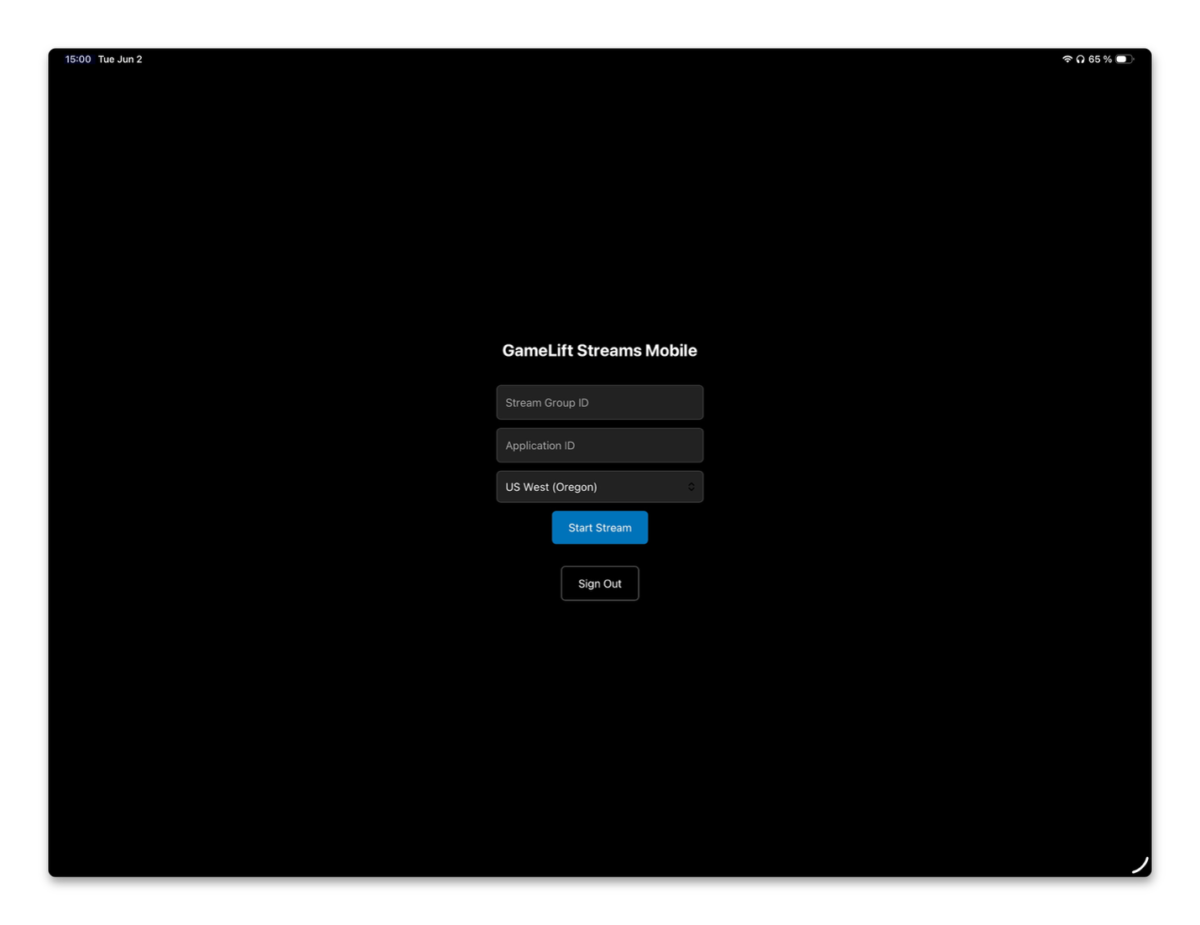
Mobile game streaming means players can jump into a game from a browser link on any phone or tablet without an app store download… In Part 1 of this series, we built a desktop-optimized streaming frontend with the Amazon GameLift Streams React Starter example… With that solution, players can str…
Mobile game streaming means players can jump into a game from a browser link on any phone or tablet without an app store download. In Part 1 of this series, we built a desktop-optimized streaming frontend with the Amazon GameLift Streams React Starter example. With that solution, players can stream game content through a browser on their desktop using keyboard and mouse input. But what about mobile?
Game streaming removes the traditional download and install steps for players on any device. On mobile, this means players can jump into a game directly from a browser link without going through an app store. However, building a streaming frontend for mobile introduces a different set of challenges compared to desktop: touch input replaces keyboard and mouse, orientation might need to be forced to landscape for certain game types, and platform APIs on mobile devices behave differently than their desktop counterparts.
In this post, we show you the key considerations for building a dedicated mobile frontend that solves these challenges while reusing the existing backend infrastructure and AWS Cloud Development Kit (AWS CDK) deployment pattern of Part 1.
Consider building a dedicated mobile frontend
When you first consider targeting users on mobile devices, responsive design practices are a strong route. Media queries, layout frameworks, and in-built browser properties can streamline the process.
For game streaming, however, this approach breaks down quickly. The desktop frontend is built around keyboard and mouse input, windowed mode, and desktop browser APIs. These concepts don’t translate directly to mobile devices. You need touch-based virtual controls overlaying the stream and forced landscape orientation. You also need workarounds for APIs that some mobile platforms don’t implement.
One approach is to create a separate project (mobile-frontend/) that connects to the same backend API. This keeps both frontends focused. The desktop version stays optimized for its input model, and the mobile version can make opinionated decisions about touch, orientation, and full screen mode without complicating the desktop code with conditional branches.
How to make the browser disappear with a progressive web app
The first problem to solve on mobile is the browser user interface (UI). Address bars, navigation buttons, and status bars consume screen space that your stream needs. A progressive web app (PWA) in standalone mode removes all of this without requiring an app store submission.
Start by creating a web app manifest that specifies how the browser should behave when installed:
{
  "display": "standalone",
  "orientation": "landscape",
  "background_color": "#000000",
  "theme_color": "#000000"
}
Setting display: standalone removes the browser UI when the user adds your app to their home screen. The orientation: landscape field locks the display on Android. Use a black background and theme color so the system UI blends with your stream during loading. There’s an important caveat for iOS: As of this writing, Safari ignores the manifest orientation field entirely. You can’t programmatically lock orientation on iOS. Instead, detect when the device is in portrait mode and show a prompt asking the player to rotate. You can use CSS transforms to rotate the viewport, but this breaks the coordinate mapping between touch events and the streamed game content. Your players’ taps would land in the wrong place. You also need a Service Worker to satisfy PWA installation requirements. Because there’s no offline use case for a streaming application, keep it minimal: a pass-through that runs skipWaiting() and clients.claim() without caching anything means the web app can fail gracefully when offline. The following image is an example of the mobile frontend running as an installed PWA on an iPad, which hides the browser UI for a fully immersive streaming experience: 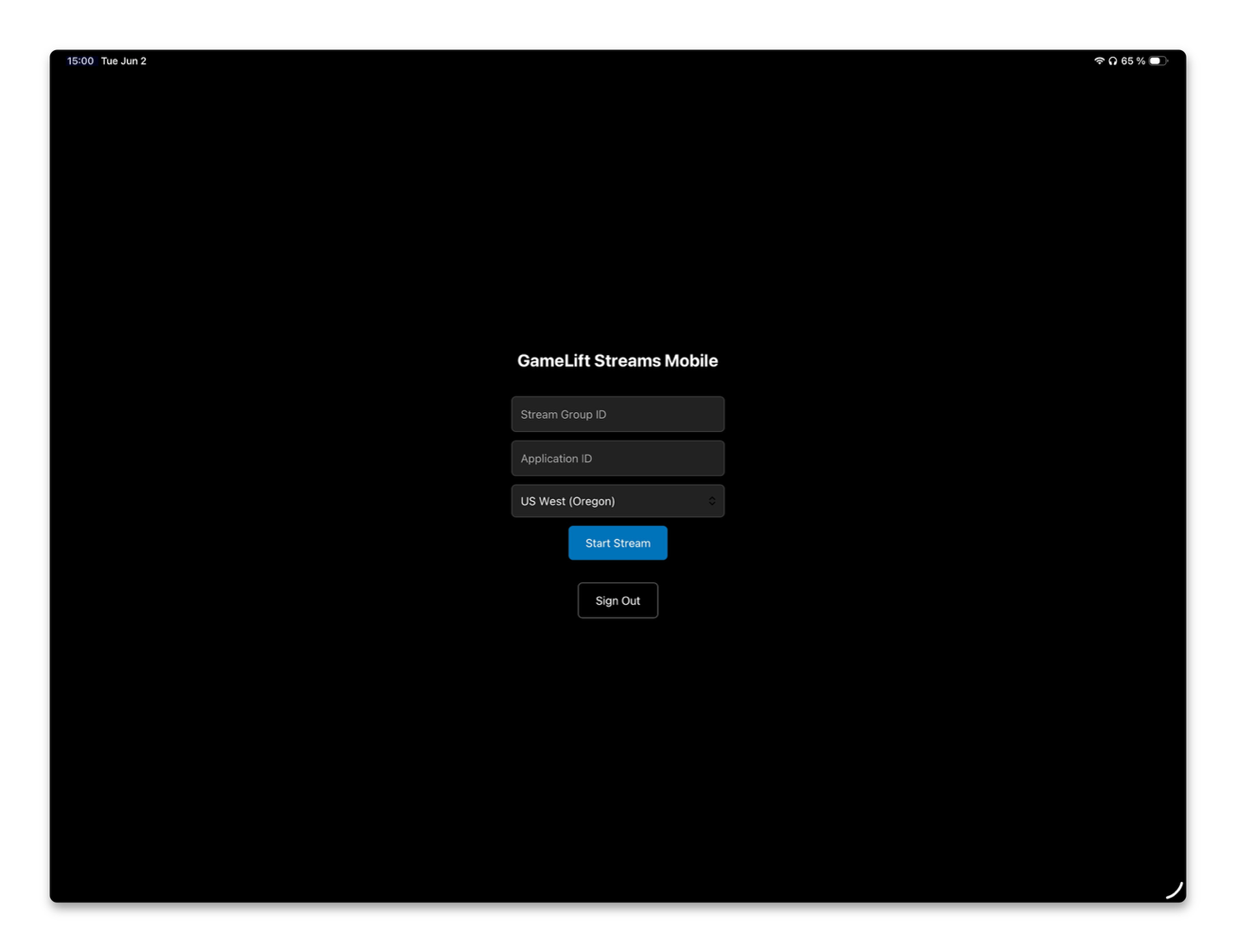
Figure 1: Mobile frontend running as an installed PWA on an iPad
Workarounds for iOS
iOS Safari presents unique considerations for browser-based game streaming. Mobile Safari behaves differently with certain web APIs that desktop browsers widely support. The following are practical approaches for working within these constraints:
Making full screen work without the full screen API
On desktop, you invoke Element.requestFullscreen() and the browser handles the rest. On iOS, invoking fullscreen on a video element causes Safari to switch to its own video player. This player leaves the browser context entirely. In that case, you can’t render any HTML overlays on top of it, which is a problem for game streaming because you need touch controls, UI elements, and status indicators layered over the video. Instead, apply position: fixed; inset: 0 to the body element unconditionally. This fills the entire viewport from the moment your app loads while keeping your HTML layer intact for overlays. When combined with PWA standalone mode, there’s no browser UI to compete with, and your stream occupies every pixel. To extend behind the notch on modern iPhones, add viewport-fit: cover to your viewport meta tag. This tells Safari to let your content flow into the safe area insets. You can then manage with CSS env(safe-area-inset-*) values if needed.
Unlocking audio playback
iOS blocks audio autoplay until the user performs a gesture. If you try to play audio programmatically without a preceding tap, the browser silently ignores it. The solution is to call audioElement.play() inside the same event handler where the user taps “Start Stream.” This single tap both initiates the stream and satisfies the browser’s autoplay policy. There’s a subtlety here: The SDK might not have attached its audio track when the tap occurred. To handle this, also listen for the loadedmetadata event on the audio element and call play() again when it fires. This catches the case where the audio track arrives after the initial gesture. The GameLift Streams SDK requires you to pass separate <video> and <audio> elements in its constructor. Keep the video element muted and let audio play through its dedicated element. This separation is what makes the gesture-based unlock possible because you can unlock the audio element independently of the video.
Detecting iPads correctly
Today, modern iPads report navigator.platform as MacIntel rather than iPad. This makes them indistinguishable from Macs through the user agent alone. One way to detect an iPad is to check for the combination of navigator.platform === 'MacIntel' and navigator.maxTouchPoints > 1. A Mac laptop reports zero or one touch points, while an iPad reports more. After it’s detected, apply the same iOS workarounds: the PWA standalone prompt, gesture-based audio unlock, and CSS-based full screen.
Adding virtual gamepad controls
Without a physical controller, your players need on-screen controls to interact with the streamed game. The Amazon GameLift Streams Web SDK accepts custom gamepad objects that conform to the W3C Gamepad interface, which means you can build a virtual gamepad that the SDK treats identically to a physical one. The following screenshot shows an example controller overlay: 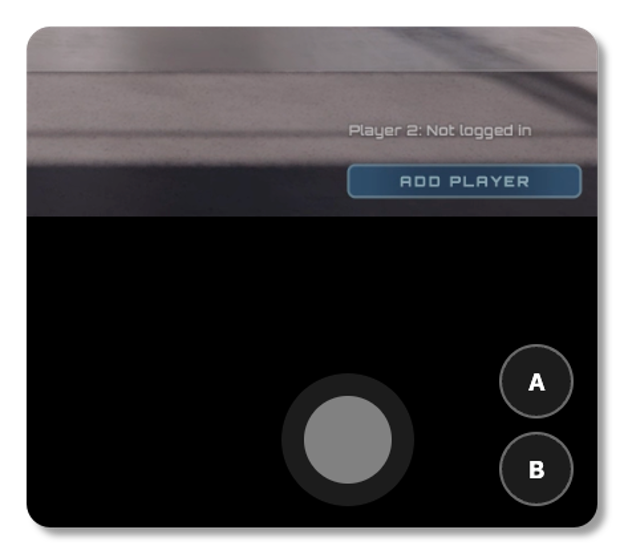
Figure 2: Virtual gamepad controller overlay
To implement this:
- Create a class that implements the Gamepad interface. It needs
axes(an array of four values for dual sticks),buttons(an array of 17 button objects matching the standard gamepad layout), and aconnectedproperty. Use an index of 200 or higher to avoid collisions with physical controllers that occupy indices 0 through 3.
- Create a class that implements the Gamepad interface. It needs
- Register it with the SDK after the stream connects. Call
addGamepad()after the WebRTC connection is established and input is attached:
- Register it with the SDK after the stream connects. Call
sdkRef.current.addGamepad(gamepadRef.current);- Invoke
processGamepads()on every input change. Whenever a touch event updates a joystick axis or button state, runprocessGamepads()to transmit the current state to the streaming instance. The SDK doesn’t poll your gamepad automatically, so you must inform it when state has changed.
This approach coexists with autoGamepad: true in the SDK configuration, which automatically detects and forwards physical Bluetooth or USB controllers. Players who connect a physical gamepad can use it alongside or instead of the virtual controls without any additional code.
Reusing the backend infrastructure
In the first post, we already have a CDK stack that deploys an Amazon Simple Storage Service (Amazon S3) bucket, Amazon CloudFront distribution, and AWS WAF WebACL for the desktop frontend and an API to manage the stream sessions. Rather than duplicating this stack, we parameterize it with a buildAssetPath property that points to whichever frontend build directory you want to deploy:
// Desktop frontend
new AmazonGameliftStreamsReactStarterFrontendStack(app,
  'AmazonGameliftStreamsReactStarterFrontendStack', {
  buildAssetPath: './amazon-gamelift-streams-react-starter-frontend/build',
  env: { account, region: 'us-east-1' }, // WAF requires us-east-1
});

// Mobile frontend
new AmazonGameliftStreamsReactStarterFrontendStack(app,
  'AmazonGameliftStreamsReactStarterMobileFrontendStack', {
  buildAssetPath: './mobile-frontend/build',
  env: { account, region: 'us-east-1' }, // WAF requires us-east-1
});
Each instantiation creates independent resources with the same security posture: geo-restrictions, rate limiting, and IP reputation rules. Both must deploy to us-east-1 because AWS WAF WebACLs for Amazon CloudFront distributions can only exist in that Region.
Prerequisites
Before deploying the mobile frontend, you need:
- An AWS account with permissions to deploy CDK stacks
- The API stack from Part 1 already deployed (Amazon Cognito user pool and API Gateway endpoint)
- Node.js v18 or above and npm installed
- AWS CDK CLI installed (
npm install -g aws-cdk) - AWS CLI configured with credentials for your target account
- The Amazon GameLift Streams Web SDK downloaded from the getting started page
Deploying the mobile frontend
These steps assume you’ve already deployed the API stack and configured Amazon Cognito as described in Part 1.
- Copy the Amazon GameLift Streams Web SDK files into
mobile-frontend/src/gamelift-streams-websdk/ - Update the Amplify configuration in
mobile-frontend/src/App.tsxwith the Amazon Cognito user pool ID, client ID, and API endpoint from the API stack output - Run
npm install && npm run buildinside the mobile-frontend/ directory - Run
cdk deploy AmazonGameliftStreamsReactStarterMobileFrontendStack
Your mobile frontend connects to the same Amazon Cognito user pool and Amazon API Gateway endpoint as the desktop version. No additional backend resources are required.
You should now have a mobile streaming application like the one shown in this image:
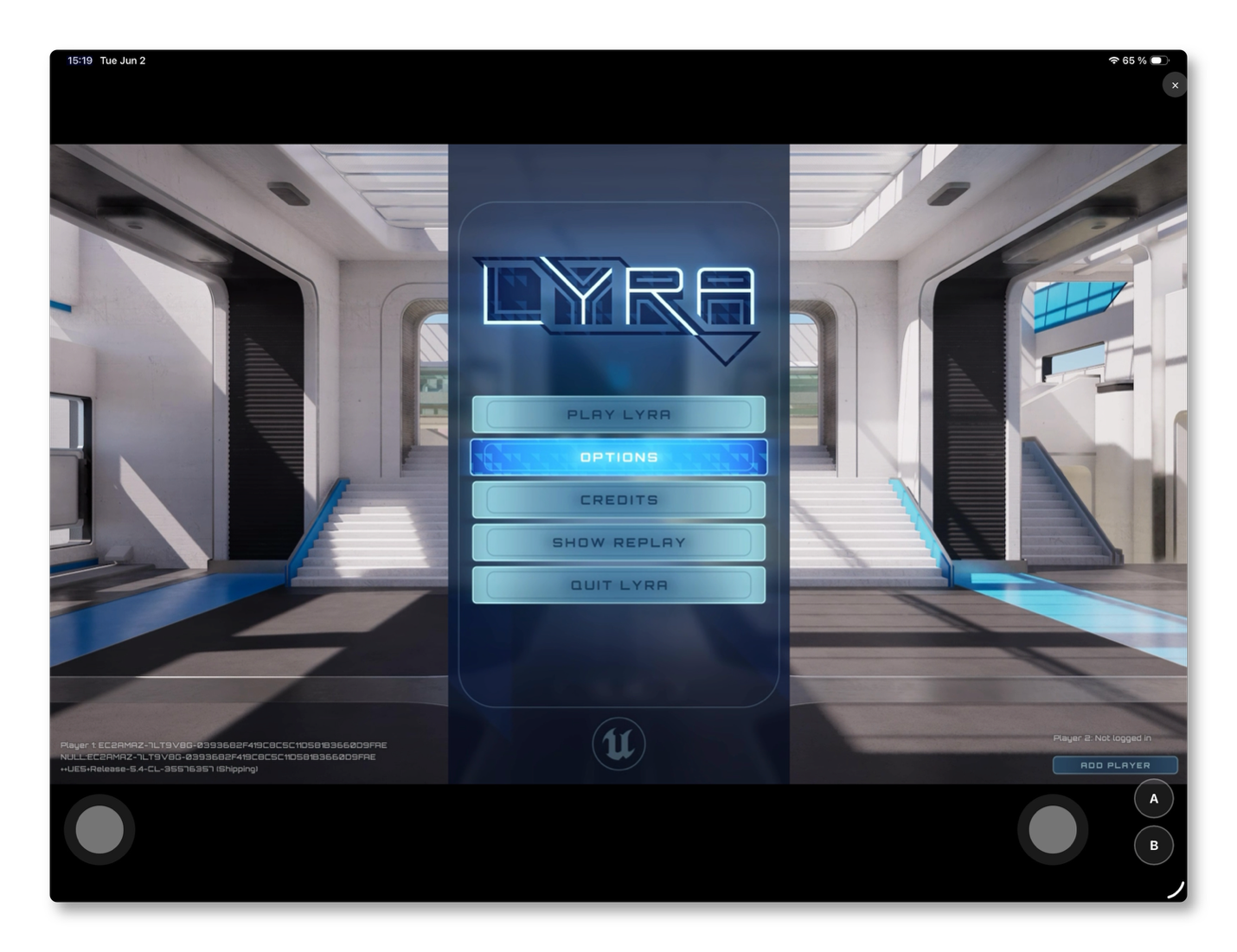
Figure 3: Mobile streaming application
Clean up resources
To avoid ongoing charges, delete the mobile frontend stack when you no longer need it:
cdk destroy AmazonGameliftStreamsReactStarterMobileFrontendStackThis removes the Amazon CloudFront distribution, Amazon S3 bucket, and AWS WAF WebACL created by the stack. If you also want to remove the desktop frontend and API, run cdk destroy --all.
If you delete stacks using the AWS Management Console instead of CDK, you must delete the Amazon CloudFront distribution (in us-east-1) before the WAF WebACL can be removed.
Amazon GameLift Streams capacity incurs charges when allocated. Set both always-on and on-demand capacity to zero in your stream groups when not in use. Check out the Amazon GameLift Streams pricing page for details.
Conclusion
Delivering game streaming to mobile devices introduces solution-specific challenges that go beyond responsive design. By building a dedicated mobile frontend as a PWA with virtual gamepad controls, you can provide a touch-first experience that works on any phone or tablet with a browser with no app store submission required. The same pattern extends to other browser-enabled devices such as smart TVs or set-top boxes, where input methods and display constraints differ from desktop but the streaming backend remains unchanged.
The mobile frontend implementation is available in the Amazon GameLift Streams React Starter sample repository under the mobile-frontend/ directory. Clone the repository, follow the deployment steps in the README, and start streaming your game content to mobile devices.
Author: Benjamin Meyer