

Introducing Route 53 Resolved IP Validation for AWS Network Firewall
For HTTP and HTTPS, AWS Network Firewall domain rules match the name that the client puts in the request, and the client chooses that name… As a result, Network Firewall rules for these protocols have used IP addresses, which change over time… For web and non-web traffic alike, Network Firewall…
Your workloads reach most destinations by domain name, but a firewall can only act on what it sees in the traffic. For HTTP and HTTPS, AWS Network Firewall domain rules match the name that the client puts in the request, and the client chooses that name. The connections for protocols such as SSH and SSH File Transfer Protocol (SFTP) don’t carry the domain name. The client uses the name only for the DNS lookup and then connects straight to the IP address that DNS returned. As a result, Network Firewall rules for these protocols have used IP addresses, which change over time. For web and non-web traffic alike, Network Firewall had no view of the answers that your DNS resolver returned, because that shared visibility between DNS and the firewall didn’t exist.
On October 21, 2026, we launched Route 53 Resolved IP Validation for AWS Network Firewall, at no additional charge. Amazon Route 53 Resolver now shares the IP addresses that it returns for each domain name with Network Firewall, and Network Firewall checks each new outbound connection against them. With this launch, you can now filter non-web traffic by domain name, and you can prevent Server Name Indication (SNI) manipulation on TLS traffic without needing to enable TLS inspection.
In this post, we explain how the feature works, show how to turn it on in alert mode, and walk through two common use cases. They’re examples; the same check applies to any outbound traffic that you control by domain name.
How it works
Amazon Route 53 Resolver answers DNS queries from resources in your virtual private cloud (VPC) configured to use it, and it’s available by default in every VPC. With this feature, Route 53 Resolver keeps the IP addresses that it returns for each domain name in a resolved IP cache. When a new outbound connection starts, Network Firewall checks the destination address against that cache.
- The workload asks Route 53 Resolver at
10.0.0.2forfiles.partner.example.com. - DNS Firewall checks the query first. Domain rules can block or alert on it; an empty rule group lets it through.
- Route 53 Resolver answers
203.0.113.10and records the answer in the resolved IP cache. - The SFTP connection to
203.0.113.10on port 22 reaches the Network Firewall endpoint. - The policy checks the first packet. The address is in the cache, so the connection continues.
- The stateful rule passes it, because Route 53 Resolver returned the address for
files.partner.example.com. - The connection leaves through the NAT gateway and internet gateway.
- The flow log and alert log record the new fields.
The feature has three parts:
- An Amazon Route 53 Resolver DNS Firewall rule group – It defines the scope. The answers that Route 53 Resolver returns in every VPC associated with this rule group go into the resolved IP cache. The rule group can be empty. Add rules to it and the same rule group also filters the DNS queries themselves, for example, by blocking lookups of known threat domains. Together, DNS Firewall checks the lookup and Network Firewall checks the connection that follows.
- The Network Firewall policy setting – On the first packet of each new connection, before your stateful rules run, Network Firewall checks whether Route 53 Resolver returned the destination address for a domain name. If it did, the connection continues to your stateful rules. If it didn’t, Network Firewall applies the action you chose: Alert, Drop, or Reject.
- Resolved-domain rules – In your stateful rule groups, these rules match a connection by the domain name that its destination address was resolved for, so they work with every protocol. Use the name that your clients look up.
The following diagram shows this architecture.
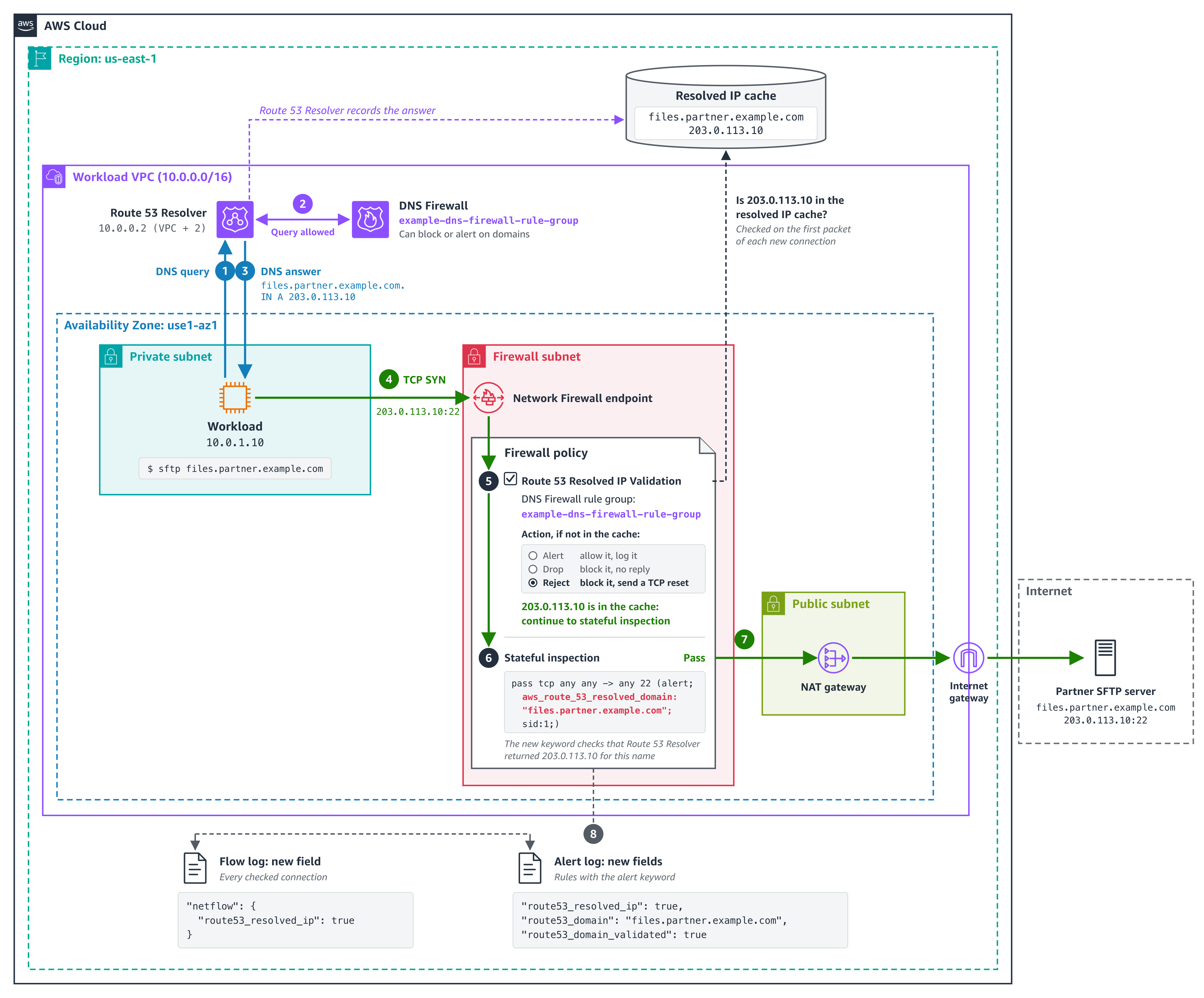
Figure 1. How Network Firewall checks the SFTP connection from use case 1 against the answers that Route 53 Resolver returned
The policy setting checks every connection, not only web traffic. A connection to an IP address that no client looked up through Route 53 Resolver, such as a hardcoded address, fails the check. If any of your workloads connect straight to IP addresses, add those addresses to Bypass destination validation IP ranges before you enforce. A stateful pass rule doesn’t exempt them because the policy check runs before your rules. The check is per address: when any client in an associated VPC looks up a name, its addresses pass the check for every client in scope in the same Availability Zone. For details, see Resolved IP validation in AWS Network Firewall in the AWS Network Firewall Developer Guide.
Prerequisites
To follow along, you need:
- DNS through Amazon Route 53 Resolver – Network Firewall can check only answers that Route 53 Resolver returned. Queries that reach Route 53 Resolver through Resolver endpoints or Resolver forwarding rules count.
- A Route 53 Resolver DNS Firewall rule group associated with the VPCs whose DNS answers Network Firewall should check connections against.
- The policy setting turned on before you add resolved-domain rules – Rules that use domain filtering (the
aws_route_53_resolved_domainkeyword) need Route 53 Resolved IP Validation turned on in the same firewall policy. Turn the setting on first, in alert mode, then add the rules. - A supported deployment model – The feature works with distributed deployments, including multiple firewall endpoints, where clients reach a firewall endpoint in their own Availability Zone, and with centralized deployments where the firewall is attached natively to AWS Transit Gateway. If routing sends a client to a firewall endpoint in another Availability Zone, its connections fail the check. To move a centralized deployment to a natively attached firewall, see Why and how to migrate to a Transit Gateway attached AWS Network Firewall.
How to turn it on in alert mode
Start in alert mode because clients cache DNS answers. Network Firewall recognizes only the answers that Route 53 Resolver returns after the DNS Firewall rule group is associated with the VPC and selected in the policy. A client that still uses an answer it cached earlier fails the check until it looks up the name again, usually when its cached record expires. Alert mode lets you see this without blocking anything. Allow about 24 hours in alert mode for clients to refresh their caches.
- Create a DNS Firewall rule group (it can be empty) and associate it with the VPCs whose DNS answers Network Firewall should check connections against. For the steps, see Creating a rule group and rules.
- Or, to use a DNS Firewall rule group that you already have, make sure it’s associated with those VPCs and only those. An answer returned in any associated VPC is valid for every client that the firewall checks. Which clients are checked is set by source IP ranges in step 6.
- In the Amazon Virtual Private Cloud (Amazon VPC) console, under Network Firewall, choose Firewall policies, then choose the policy that your firewall uses. On the Traffic inspection tab, in the Route 53 Resolved IP validation section, choose Edit and select Enable Route 53 Resolved IP validation.
- For Action, choose Alert. For DNS Firewall rule group, choose the rule group from step 1 or 2.
- For DNS expiry exception policy, choose what happens to a connection that’s already open when its entry expires from the resolved IP cache. Continue keeps it running, Drop stops it silently, and Reject stops it with a TCP reset. We recommend Continue so that long-running sessions, such as file transfers, aren’t cut off midway. However, choose the option that fits your security requirements.
- For source IP ranges, list the clients to check. If you don’t set it, Network Firewall checks clients in the firewall’s VPC and in any additional VPCs attached to the firewall. If your clients are in other VPCs, such as spoke VPCs that send traffic to a firewall attached to a transit gateway, enter their CIDR ranges; otherwise, Network Firewall doesn’t check their connections. Add destinations that you allow by IP address to Bypass destination validation IP ranges. Choose Save.
The following screenshot illustrates these steps.
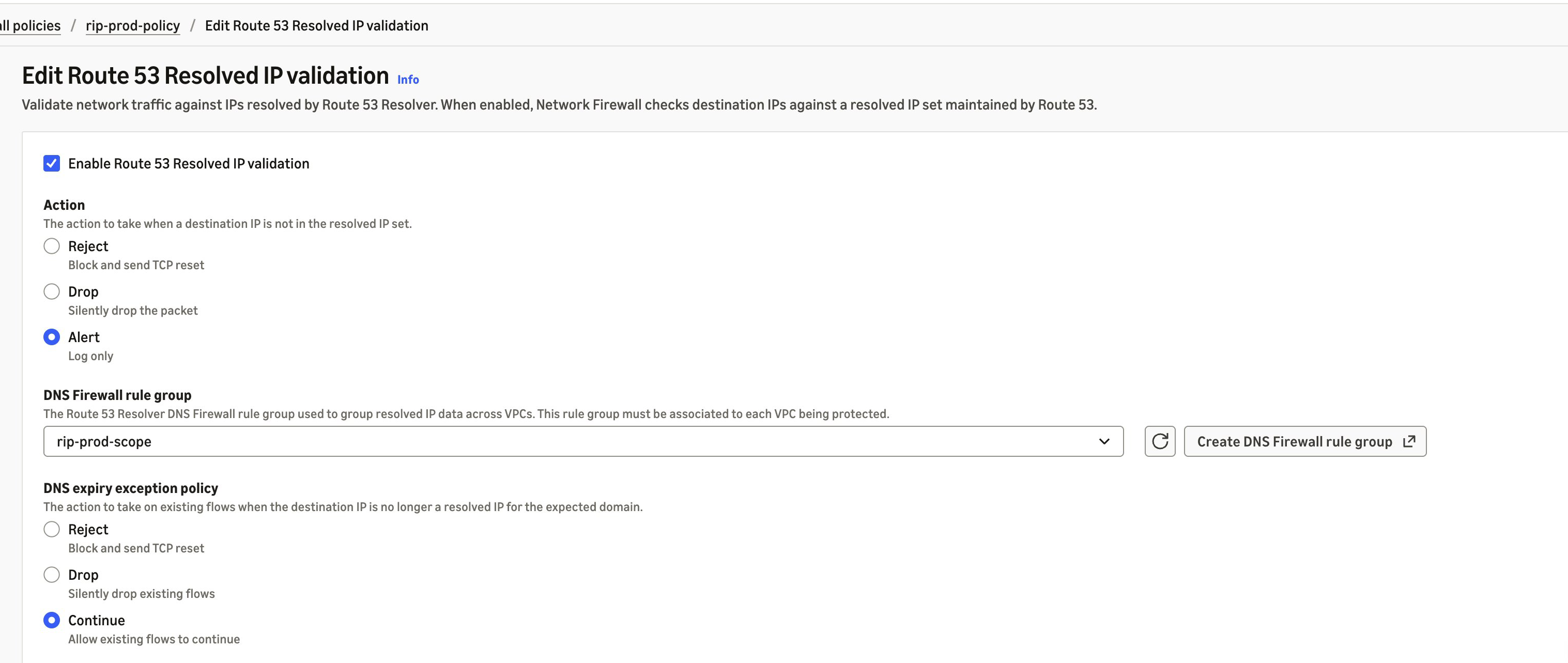
Figure 2. Route 53 Resolved IP Validation turned on in alert mode
In alert mode, Network Firewall doesn’t block a connection that fails the check, and it doesn’t write an alert of its own. It records the result in your flow logs, in the route53_resolved_ip field of each connection. A value of true means Route 53 Resolver returned the destination address for a domain name. A value of false means it didn’t, so enforcement would block the connection. The same field also appears in alert log records that a rule or the policy’s default action writes for the connection. Pass rules don’t write one unless they have the alert; keyword. The DnsUnresolvedFlows metric in Amazon CloudWatch counts the connections that fail the check, and DnsAzUnavailableFlows counts connections from an Availability Zone that doesn’t support the feature. The following alert log record (trimmed, with example values) was written by a default action that alerts, for a connection to an address that Route 53 Resolver returned:
In alert mode, this record is for a TLS connection that presented an allowed domain name but went to an address that Route 53 Resolver didn’t return for it, blocked by the policy’s default action in use case 2:
Before you switch Action to Drop or Reject, check that connections that fail the check are ones you expect and that destinations you allow by IP address are in the bypass ranges. Reject sends a TCP reset, so a blocked TCP client fails right away instead of waiting for a timeout. After you enforce, blocked connections appear in your flow logs with route53_resolved_ip as false, not in your alert logs. For the metrics and log fields to watch, see Monitoring and troubleshooting resolved IP validation.
Use case 1: Filter non-web traffic by domain name
Before this launch, Network Firewall rules for protocols that carry no domain name, such as SFTP, used IP addresses. Now, you can allow them by domain name. In this example, a workload sends files over SFTP to a partner at files.partner.example.com on TCP port 22, and the partner can change the addresses behind that name at any time. The same approach works for SSH, MySQL, and other non-web protocols. You create it as a standard stateful rule. Follow these steps:
- Under Network Firewall, choose Network Firewall rule groups, then choose Create rule group. Choose Stateful rule group and Standard stateful rule, and choose the rule evaluation order that your policy uses.
- Choose Add rule. For Protocol, choose TCP. For Destination port, enter
22. Under Domain filtering, enterfiles.partner.example.com. For Action, choose Pass. - Create the rule group, then add it to your firewall policy.
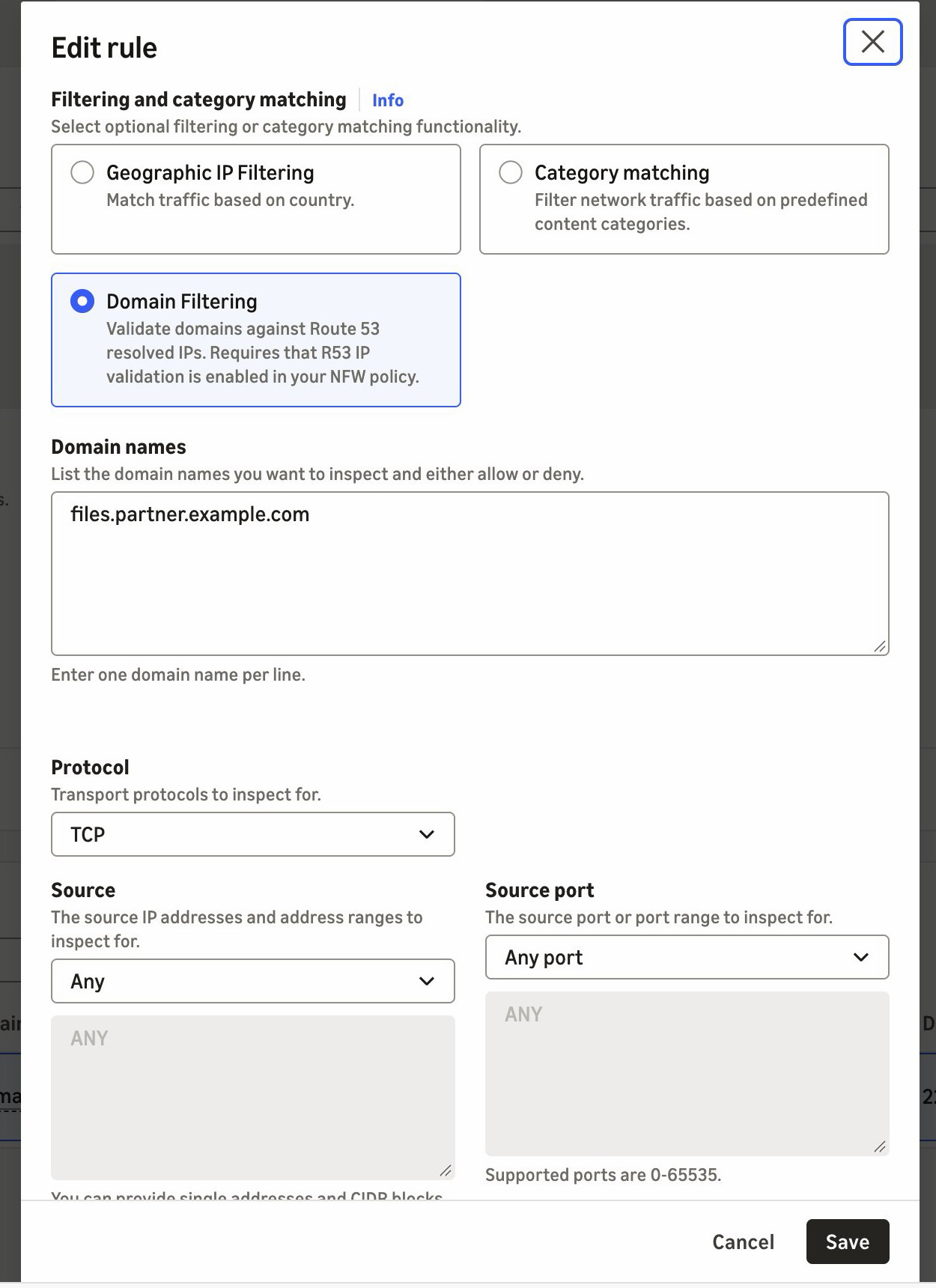
Figure 3. A pass rule for SFTP on TCP port 22, scoped to the partner’s domain name
If you manage rules as code, the equivalent Suricata rule is shown in the following code. It adds the alert; keyword so that the firewall logs allowed connections. The console rule doesn’t add it.
When the partner moves its server to a new address, the next DNS answer adds it to the resolved IP cache. There’s no IP list to maintain. The cache keeps earlier answers for longer than their DNS time to live (TTL), so the old address can still pass for a while.
Use case 2: Prevent SNI spoofing without TLS inspection
With SNI spoofing, a client presents an allowed domain name in its TLS request while it connects to a different server. Preventing that has required TLS inspection, which decrypts the traffic. Route 53 Resolved IP Validation prevents it without TLS inspection. In this example, a workload calls a partner API at api.partner.example.com over HTTPS. TLS traffic on port 443 must reach only the addresses that Route 53 Resolver returned for that name. You create a pass rule in a standard stateful rule group, as in use case 1, and the firewall policy’s default action drops everything that no rule passes. Follow these steps:
- Under Network Firewall, choose Network Firewall rule groups, and then choose Create rule group. Choose Stateful rule group and Standard stateful rule, then choose Strict order.
- Choose Add rule. For Protocol, choose TLS. For Destination port, enter
443. Under Domain filtering, enterapi.partner.example.com. For Action, choose Pass. - Create the rule group, then add it to your firewall policy.
- In the firewall policy, use strict rule order. For the stateful default actions, choose Application drop established (server-directed only) and Application alert established (server-directed only). The alert action logs what the drop action blocks. For why we recommend these default actions, see Firewall policy configuration in the AWS Security Services Best Practices guide.
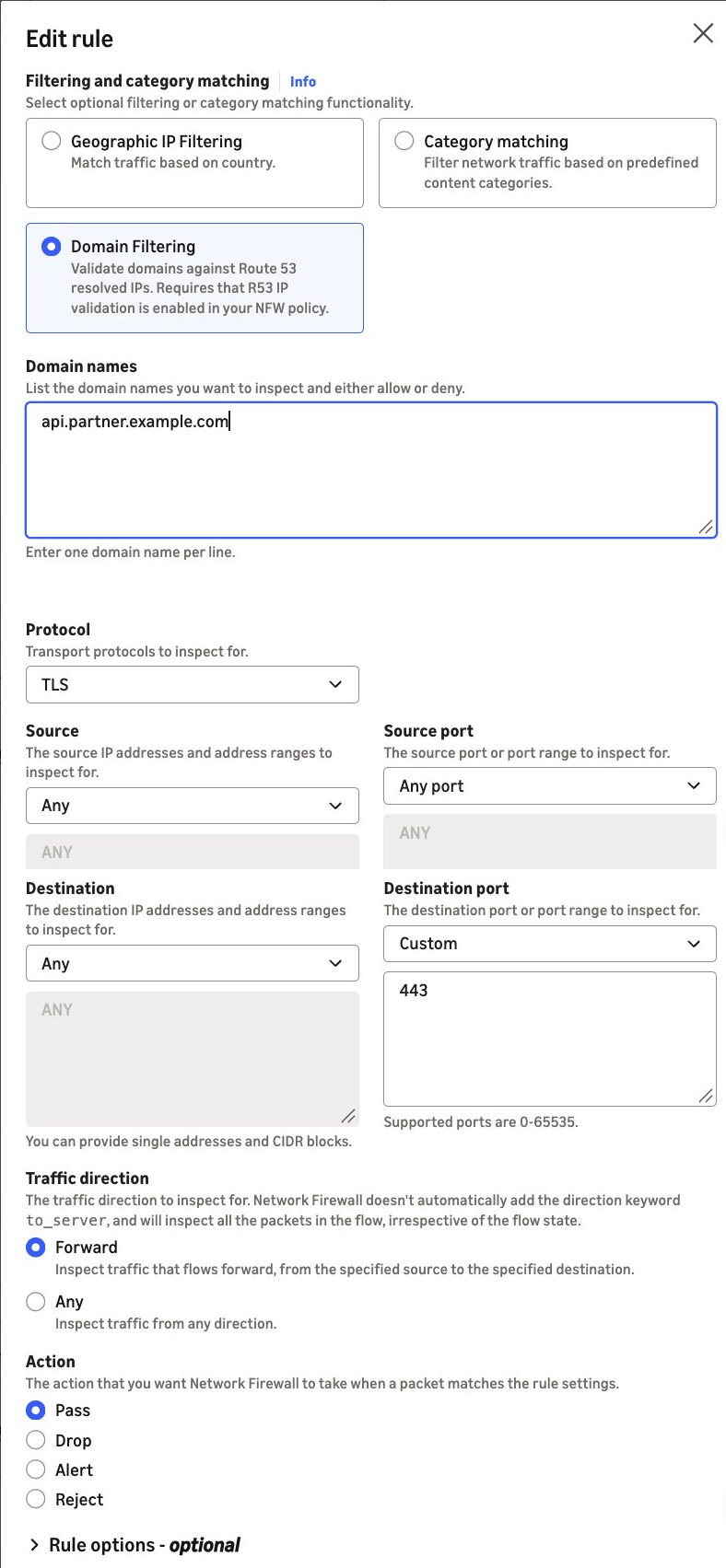
Figure 4. A pass rule for TLS on port 443, scoped to the partner’s domain name
If you manage rules as code, the equivalent Suricata rule is:
The pass rule matches the destination address, not the name in the TLS request. TLS traffic on port 443 passes only when Route 53 Resolver returned the destination address for api.partner.example.com. If the partner’s addresses also serve other domain names, such as behind a content delivery network (CDN), those names pass too. To also require the partner’s name in the TLS request, add an exact SNI match to the same rule: tls.sni; content:"api.partner.example.com"; startswith; endswith; nocase;.
Without startswith and endswith, the content match accepts any SNI that contains the name.
A connection that presents the partner’s name but goes to another address doesn’t match the pass rule. If Route 53 Resolver never returned that address, the policy setting’s enforcement action blocks the connection before your rules run. In alert mode, the policy setting lets the connection through to your rules instead, and the stateful default action drops it because the pass rule doesn’t match. Its alert log record shows route53_resolved_ip as false, as in the second example previously. If Route 53 Resolver returned the address for a different domain name, the connection passes the policy check. The stateful default action then drops it because the pass rule doesn’t match, and that record shows route53_resolved_ip as true.
Best practices
We recommend that you follow these best practices:
- Keep DNS on Route 53 Resolver – Block outbound UDP and TCP port 53 DNS to other resolvers, including DNS over HTTPS (DoH) and DNS over TLS (DoT), on Network Firewall, so that clients don’t bypass the check. Route 53 Resolved IP Validation alone doesn’t do this. If any client looks up a public resolver’s name, such as
dns.google, that resolver’s addresses pass the check. - Keep DNS Firewall rules in those VPCs – Route 53 Resolved IP Validation checks the connections that follow a DNS lookup, not the DNS queries themselves. DNS Firewall blocks lookups of known threat domains with AWS managed domain lists, and its advanced rule groups detect data leaving through DNS queries, such as DNS tunneling.
- Start small – Add domain filtering to a few rules at a time, then add more when the results look clean. For domain allow list patterns, see Allow rules and domain allowlisting.
- Turn on flow and alert logging and detailed monitoring – Connections that fail the resolved IP check show in your flow logs (
route53_resolved_ip: false) and in theDnsUnresolvedFlowsmetric, not in your alert logs. Pass rules without thealert;keyword don’t write an alert log record.
Pricing and availability
Route 53 Resolved IP Validation is available today in all commercial AWS Regions (Regions other than the AWS GovCloud (US) Regions and the China Regions) where AWS Network Firewall and Amazon Route 53 Resolver DNS Firewall are available, at no additional charge. For the list of Regions, see AWS Capabilities by Region. A DNS Firewall rule group with no rules doesn’t incur DNS Firewall charges. Standard DNS Firewall pricing applies after you add rules. See AWS Network Firewall pricing and Amazon Route 53 pricing.
Conclusion
In this post, we showed you how Route 53 Resolved IP Validation works and how to turn it on in alert mode. Network Firewall now checks each connection’s destination against the IP addresses that Amazon Route 53 Resolver returned for the DNS query. Filtering SFTP, SSH, database, and other non-web traffic by domain name and preventing SNI spoofing without TLS inspection are two common examples of what that makes possible. To get started, turn the feature on in alert mode and review the results before you enforce. For the full walkthrough, see Getting started with resolved IP validation.
To learn more, visit the AWS Network Firewall product page and the feature documentation.
If you have questions about this post, contact AWS Support.
Author: Lawton Pittenger